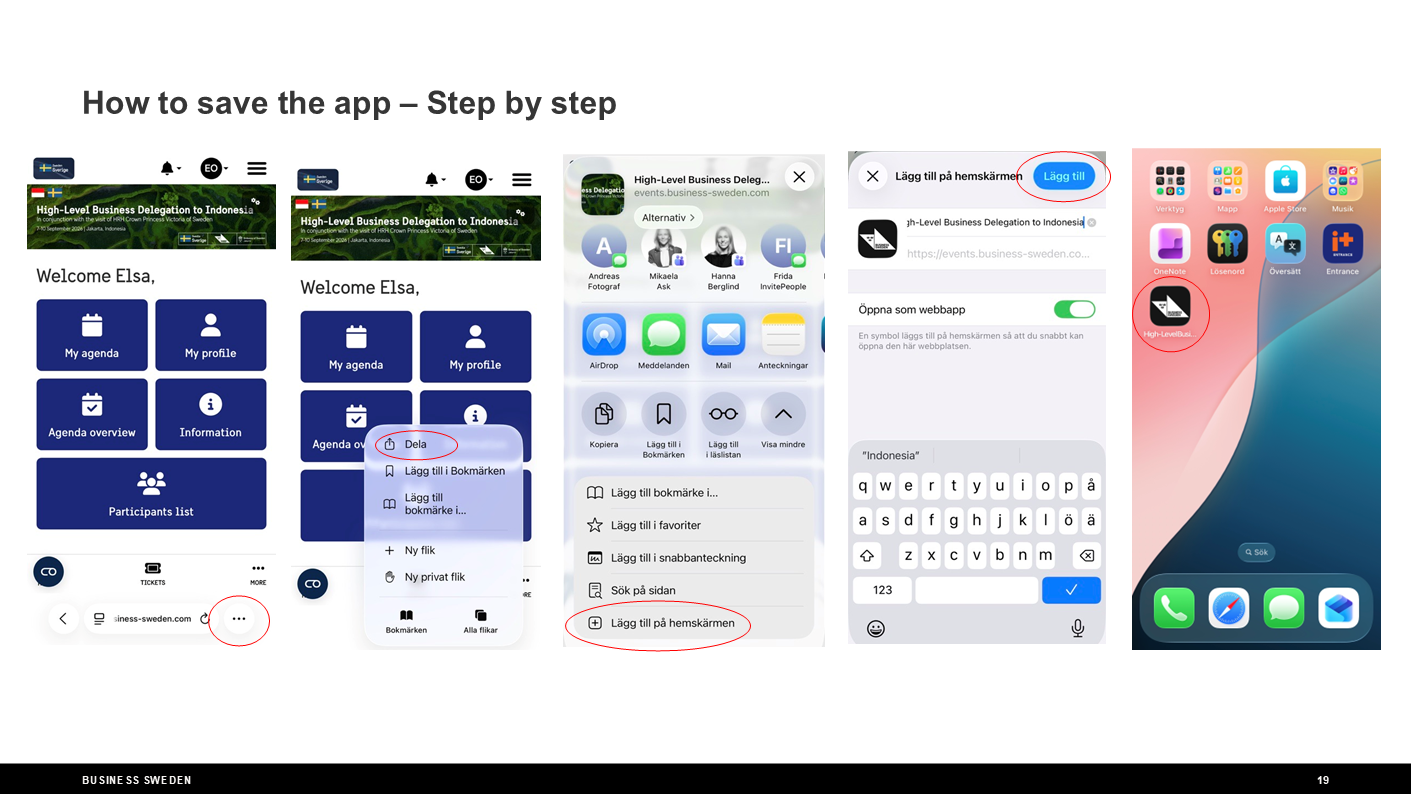
Create Website Shortcut to get app functionality at this event
The home screen on your smartphone or tablet isn't just a place where your apps live. You can also add shortcuts to websites. Here's how to create an "app" for any website on your device, allowing you to access shortcuts directly from your home screen.
iPhone or iPad
- Open Safari. Other browsers, such as Chrome, won't work for this.
- Make sure you visit the exact page you want to open through the shortcut.
(Startpage of this event when you followed your personal link provided in your e-mail or text message.) - Tap the Share button on the bottom of the page. It looks like a square with an arrow pointing out of the top.
- In the list of options that appear, scroll down until you see Add to Home Screen. Tap this. The Add to Home Screen dialog box will appear.
- Click Add and you're done. Safari will close automatically, and you will be taken to where the icon is located on your iPhone's or iPad's home screen.
- Now just tap the new "app" or shortcut on your home screen, and it will open the website in its own navigation window, independent of what you have open in Safari.
Note: If you ever decide you want to remove the website shortcut, you can delete it just like you would any other app on your phone.
Android
- Open Chrome.
- Navigate to the website or web page you want to pin to your home screen.
- Tap the menu icon (3 dots in upper right-hand corner) and tap Add to home screen.
- Choose a name for the website shortcut, then Chrome will add it to your home screen